
How do AI credits work, and where do they go?
AI credits are used when you ask the AI agent to make changes or updates to your site in GoDaddy Airo AI Builder. To make credits go further, give Airo clear instructions it can execute in one go, keep each follow-up to a single specific change, and use Edit mode to make text and image fixes yourself.
The free plan includes 50 free credits every month. The Starter plan ($9.99/mo annual) includes 150 credits every month.
Most people know a vague prompt gets a vague result. What is less obvious is that vague follow-up prompts are where credits disappear. Across thousands of builds, the most efficient ones share a pattern: a detailed first prompt, follow-ups focused on one change at a time, and direct edits for anything that doesn't need the AI at all.
This guide gives you copy-ready templates for each stage of a build.
Who this is for
- You're a beginner, new to prompting and using AI tools and products for the first time.
- You're on a plan and want to understand how to use your credits to the full extent.
- You've been using short prompts and wondering why you run out of credits so quickly.
Not every change needs a prompt
Before you spend a credit, ask yourself: can I do this myself? Not every change requires the AI. For simple text or image fixes, use Edit mode instead. Save your credits for tasks where you want the AI to create, rewrite, redesign, or build something new.
Watch Stop Wasting AI Credits: 5 Prompting Mistakes Everyone Makes for the habits that burn credits fastest, and how to fix them.
Try Airo AI Builder free — 50 credits to start, no credit card required.
What uses credits (and what doesn't)?
| What uses your AI credits | What saves your credits |
|---|---|
| Building and adding pages | Text and copy edits in the inline editor |
| Design changes and layouts | Image swaps and uploads |
| Adding features and logic | Restoring a previous version from History |
| Rewriting or generating copy | Uploading your own photos, videos, or files |
Publishing your site requires an active paid plan. It does not draw from your AI credit balance.
Edit mode: make small changes yourself
Use Edit mode for simple text and image fixes. Save your AI credits for work where you want the AI to create, redesign, or build something new.
Use AI when you want to:
- Generate or rewrite copy.
- Change layout or design direction.
- Add a new page or feature.
- Redesign a section.
Use Edit mode when you want to:
- Fix a typo or reword a line.
- Swap or upload an image.
- Change text styling, such as bold, color, or alignment.
- Update a link.
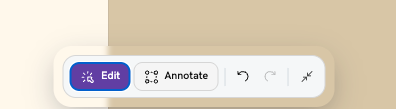
Text edits: Click Edit in the top toolbar, then click any headline or paragraph to open the inline editor. Change the wording, bold or italic styling, color, alignment, or links without asking the agent.
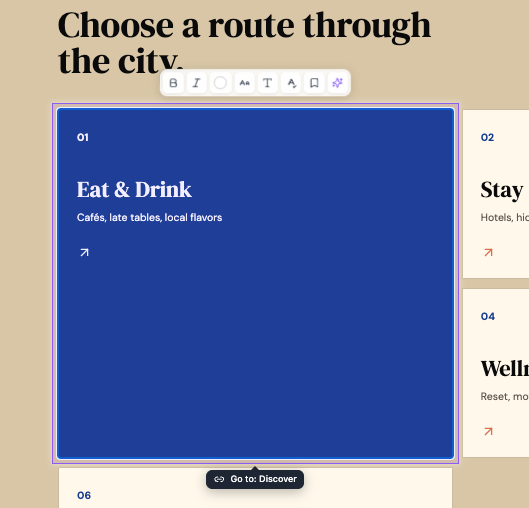
Visual edits: Click Edit in the top toolbar, then click an image to select it. For simple image swaps, use the image controls in the editor when available instead of describing the change in chat.
Watch How to Replace, Upload, and Manage Images to swap images and refine your site without burning credits on every change.
Rule of thumb: If you can click it and type, do that first. Save agent prompts for layout changes, new pages, and adding features.
Where do your credits come from?
| Source | What you get | Reset / expiry |
|---|---|---|
| Free plan | 50 credits to start | Renews every month |
| Starter (and other paid plans) | Monthly allowance (150 on Starter) | Resets each billing cycle; doesn't roll over |
| Credit add-on packs | 250 credits per pack ($24.99) | Valid 1 year from purchase |
If you have both monthly plan credits and add-on packs, Airo AI Builder uses soonest-expiring credits first so you don't lose unused packs sitting in your balance.
How do I check my credit balance?
Open Manage My Plan to track your total balance, monthly allowance, add-on packs, and reset dates. You can also buy credit add-ons from this page.
On the dashboard you will see:
- Total Airo Credits — combined balance from your plan plus any active add-on packs.
- Monthly Plan Airo Credits — your plan allowance and when it resets.
- Airo Credits Add-ons — purchased packs, purchase date, and expiry date.
- Buy Airo Credits — add a 250-credit pack ($24.99) without changing your subscription.
Click Buy Airo Credits on Manage My Plan to open the add-on flow. Each pack includes 250 AI credits, valid for one year after purchase.
To check your balance: go to Manage My Plan. There is no credit counter in the editor toolbar. Your full balance, monthly allowance, add-on packs, and reset dates all live on that page.
What should your first prompt include?
Your first prompt does more than generate a first draft. It sets the structure everything else builds on. A vague opening produces a generic layout you will spend credits reshaping. A specific one means follow-ups are refinements, not corrections.
Modern AI takes you literally. "Build me a site for my business" produces something generic because there is nothing specific to be literal about.
Template:
Build a [type of site or app] for [business name], a [type of business] based in [location]. The site needs: a homepage with [describe hero and key sections], a [page 2] with [what it contains], a [page 3] with [what it contains], and a contact form that sends to [email]. Design should feel [clean and minimal, bold and modern, warm and approachable]. Color scheme: [colors or reference].
Why this works: You've given the AI four things it needs to be specific: what you're building, who it's for, what pages it contains, and how it should look. Without all four, it fills gaps with the most generic option available.
The more you load into this first prompt, the fewer credits you spend correcting structure afterward. For more ready-to-copy first prompts by use case, see The Art of AI Prompting.
How do I prompt a design change without wasting credits?
"Make it look better" gives the AI no direction. The result is often a full regeneration that moves further from what you want, not closer. Design prompts that work name exactly what to change and which way to go.
Template:
Update the [specific section]. Change the background to [color or description]. Make the heading [larger, smaller, or a different weight]. Keep the existing layout and don't change anything outside this section.
Why this works: Naming the specific section stops the AI from treating the request as a sitewide change. "Don't change anything outside this section" is a hard boundary. Without it, a targeted prompt can trigger changes across the whole page.
If you only need to fix a word or swap an image, skip the prompt. Edit mode lets you click text on your site and type directly, or swap images. Save prompts for layout changes, color direction, and anything structural.
For more before-and-after design prompt examples, see How to Write Prompts in Airo AI Builder.
How do I add a new feature without burning extra credits?
Bundling multiple features into one prompt is the second most common way builds go off track.
The fix is one feature per prompt. Describe that feature completely: what the user sees, what happens when they interact, and any backend or data requirements.
Template:
Add a [feature name] to the site. Here's how it should work: [describe the user flow step by step: what they see, what they click, what happens next]. Store submissions in the database and [email notification, show in an admin view, or both]. Don't change any other part of the site.
Why this works: "Add a contact form" produces a generic form. A prompt that describes the fields, submit behavior, where submissions go, and what confirmation the user sees gives the AI a complete spec. It builds the right thing on the first try instead of a version you will need to correct.
What prompts should I run before going live?
Going live without a pre-publish check is how small issues become things users notice before you do. These four prompts catch the most common problems in four credits.
1. Mobile check
Check the site on mobile. Make sure all sections stack correctly, text is readable without zooming, and buttons are easy to tap. List any issues you find and fix them.
Mobile layout issues are the most common post-publish complaint and the easiest to catch before launch.
2. Links and placeholders
Review all links and buttons. Make sure everything goes to the right place, nothing is broken, and no placeholders are still visible.
Placeholder text and broken links are invisible during the build and obvious to every visitor.
3. SEO/AEO basics
Check the SEO/AEO basics: every page should have a title and meta description, images should have alt text, and the homepage should clearly describe what the business does.
These are the minimum for search engines to index the site correctly. Skipping them means starting from zero on discoverability. For a full walkthrough, see How to Get Your Website Found on Google and AI with Airo AI Builder.
4. Contact form test
Test the contact form. Submit a test entry and confirm it's stored in the database and sent to the right email if configured.
Contact forms are the most common broken element on a published site, and the one users will try first.
Five rules that make every prompt count
- Spend extra time on your first prompt. It sets the architecture for everything that follows. Rushing it costs more credits than any other mistake.
- One task per follow-up prompt. "Change the colors and add a booking page and update the footer" attempts three things and typically delivers none of them cleanly.
- Be directional, not evaluative. "Dark background, white text, increase heading size" is a direction. Give the AI somewhere specific to go.
- Scope every change with "don't change anything else." It is the fastest way to stop a targeted change from becoming a site-wide rebuild.
- Use Edit mode for text and images. Clicking to change a word or swap a photo saves your credits for building. Small habit, meaningful savings across a full build.
Watch Six Ways to Stretch Your AI Credits for more habits that help you build more with the credits you have.
Frequently asked questions
What is the difference between a prompt and an Edit mode change?
A prompt sends a message to the AI agent and uses a credit. Edit mode lets you click text or images in the preview and change them directly. Use Edit mode for copy fixes and image swaps. Use prompts for layout, features, design direction, and logic.
How do I make my free plan credits last longer?
Write a detailed first prompt, keep each follow-up to one specific change, and use Edit mode for any text or image change you can make yourself. Credits go toward building when prompts are clear and focused.
Why does Airo AI Builder ask clarifying questions?
Airo AI Builder asks clarifying questions when your prompt is missing critical context: business name, customer, services, geography, or scope. For more on why ChatGPT-style prompts cost more, see Why ChatGPT-Style Prompts Burn Credits in Airo AI Builder.
Do unused monthly credits roll over?
No. Monthly plan credits reset at the start of each billing cycle and don't carry forward. Add-on credit packs are separate: each 250-credit pack is valid for one year from purchase.
How do I get more credits?
You have two paths. Buy a credit add-on pack from Manage My Plan: 250 credits for $24.99, valid for one year. Or upgrade your plan if you consistently run out each month and need a higher monthly allowance.
What happens when I run out of credits?
You cannot send new agent prompts until credits are available again. Your published sites stay live. You can still use Edit mode for manual text and image changes. Credits return when your monthly plan resets or when you purchase an add-on pack.
Key takeaways
- AI credits power every agent message. Use Edit mode to make small fixes yourself and save credits for AI work.
- Your first prompt sets the structure. Spend time there to avoid expensive reshaping later.
- One task per follow-up prompt. Bundle features and you pay to untangle the result.
- Be directional, not evaluative. "Dark background, larger heading" beats "make it more modern."
- Scope every change with "don't change anything else" to stop site-wide rebuilds.
- Run the four pre-publish prompts (mobile, links, SEO, contact form) before you go live.
Start building
On the free plan you have 50 credits. On Starter you have 150 every month. Better prompts mean more of them go toward building and less toward correcting.
Start building with Airo AI Builder — 50 free credits to get started.