Airo AI Builder Product Update: June 2026 | Background Builds, File Attach & SEO
What’s new in June 2026? Airo AI Builder now supports background builds, file attach on your first prompt, prompt-based SEO and AEO optimization, in-app analytics, built-in image editing, automatic app transfer emails, and optional consent to share feedback publicly.
TL;DR
If you use Airo AI Builder today, here is what changed in June and why it matters:
- Builds keep running after you close the tab. Write your prompt, submit, answer the first questions, then walk away. Come back to continued progress on your build.
- You can attach a file to your first prompt. Drop in a doc, image, or HTML file on the Airo AI Builder home page and the builder uses it to kick off your build.
- You can optimize your site for search with one prompt. Type “Optimize my site for SEO” and the agent updates titles, descriptions, and page structure for you.
- Your site can be easier for AI assistants to recommend. That is AEO (Answer Engine Optimization). Clear pages can help when someone asks ChatGPT or Gemini for a business like yours.
- App transfers send automatic email updates. Whether you are sending an app to a client or accepting one, you get notified at each step in your inbox.
- You can fix images without leaving the builder. Brightness, contrast, filters, and more are built in.
- Happy with your build? Opt in to be featured. Share feedback and optionally give consent for GoDaddy to highlight your story on the blog, social channels, or website.
What This Update Is Really About
June is about three moments in your journey:
- Starting without a blank page (attach a file to your first prompt)
- Finishing without babysitting a browser tab (background builds)
- Getting found and improving after you go live (SEO, AEO, analytics, and polish)
Last month gave you the technical SEO foundation at publish. This month makes the build itself faster and less fragile, then closes the loop from launch to discoverability to measurement.
Whether you are kicking off your first idea or tuning a site that is already live, Airo AI Builder meets you where you are.
1. Background Builds: Submit, Close the Tab, Come Back Later
What changed
The disconnect timeout is gone. After you submit your first prompt and finish the initial Q&A with the agent, your build keeps running in the background even if you close the browser tab.
The build only pauses if the agent needs your input again.
What this means for you
Before: You had to keep the tab open and watch the build finish. Step away and you risked losing progress.
Now: Write your prompt. Submit. Answer the agent’s opening questions. Close the tab and go do something else. Come back to continued progress on your build.
This is especially helpful for first-time builds, which take longer while the agent sets up your site structure, copy, and layout.
How to use it
- Start a new project and describe what you want to build.
- Answer any questions the agent asks at the start.
- Once the agent is working on the build, you can close the tab or switch apps.
- Return to Airo AI Builder when you are ready. Your project will be waiting.
If the agent needs a decision from you, the build pauses until you respond.
New to prompting? See 10 Prompts You Can Copy to Build Real Apps Today or watch How to Maximize Your AI Credits on YouTube.
2. Attach a File to Your First Prompt
What changed
You can now attach a supporting file as part of your first prompt on the Airo AI Builder home page. Drag and drop a file onto the prompt area or use the file picker. Once attached, the builder fills in a starter prompt for you and enables the Generate button so you can kick off your build right away.
What this means for you
Before: You had to describe everything from scratch in the prompt box, even if you already had a doc, mockup, or old site file ready to go.
Now: Bring what you have into the first step. Useful if you have:
- A .md or .txt file with business details, copy, or a brief
- An .html file from an existing site you want to rebuild or improve
- Images (PNG, JPG, SVG, and more) for logos, product shots, or reference visuals
- A .zip with assets bundled together
The agent reads your file as context for the build instead of making you retype it all.
Supported file types
.md · .txt · .xml · .html · .htm · .zip · .png · .jpg · .jpeg · .gif · .svg · .webp
How to use it
- Go to the Airo AI Builder home page.
- Drag a file into the prompt area, or click to open the file picker.
- Review the starter prompt the builder generates from your file.
- Edit the prompt if you want, then click Generate.
Have an old site or brief ready? Pair this with 10 Prompts You Can Copy to Build Real Apps Today for stronger first builds.
3. Optimize Your Site for Search (SEO + AEO)
What changed
You can now prompt “Optimize my site for SEO” and the agent walks through your pages with you. It helps update page titles, meta descriptions, and on-page structure so your site reads clearly to search engines and AI systems.
What this means for you
Before: You published and hoped Google (or an AI assistant) would figure out what you do.
Now: You can actively tune your site for discoverability without hiring an SEO consultant or installing plugins.
This matters in two places:
- SEO is how customers find you when they search on Google. Think page titles, descriptions, and content that matches what people type.
- AEO (Answer Engine Optimization) is how you may show up when someone asks an AI assistant a question like “Who does web design for small bakeries near me?” instead of searching keywords.
| SEO | AEO | |
|---|---|---|
| Where you show up | Google and Bing search results | ChatGPT, Gemini, Perplexity, AI Overviews |
| What helps | Page titles, descriptions, sitemap | Clear content, business details, structured pages |
| What June adds | Prompt: “Optimize my site for SEO” | Same prompt; pages tuned for machines and AI systems to read |
Most small business sites miss both. Yours does not have to.
How to use it
- Open your project in Airo AI Builder.
- Type “Optimize my site for SEO” in the prompt bar.
- Review what the agent suggests. Accept changes page by page.
- Publish (or republish) when you are happy.
If you built with us in May, you already have server-rendered pages and automatic sitemap files. This prompt builds on that foundation. You are not starting from zero.
For the full picture on search readiness, read Get Found on Google and AI or watch the SEO walkthrough below.
4. See How Your Site Is Performing (Analytics)
What changed
Analytics now live inside Airo AI Builder. For published sites, you can see page views, visitors, and clicks without opening Google Analytics or another dashboard.
What this means for you
Before: You published and had no simple way to know if anyone was visiting.
Now: You get a quick read on whether your site is getting traction. That helps you decide what to improve next: a headline, a new page, or an SEO pass.
You do not need to be a data analyst. Start with three questions:
- Are people landing on my site?
- Which pages get the most views?
- Are visitors clicking where I want them to?
When you see a number move, you can prompt your next change in the same session.
How to use it
- Publish your site (or open an already published project).
- Open the analytics view in the builder.
- Check page views, visitors, and clicks over time.
- Use what you learn to prompt updates: new copy, a new section, or an SEO optimization pass.
Go deeper in How Analytics and Site Metrics Work in Airo AI Builder or watch the analytics walkthrough below.
5. Automatic Email Notifications for App Transfers
What changed
App transfer emails are now live. When you start or accept an app transfer, Airo AI Builder sends automatic email updates to your inbox at each step of the process.
What this means for you
Before: You had to stay in the product and manually check whether a transfer went through, expired, or was waiting on the other person.
Now: Your email keeps you in the loop automatically.
If you are sending an app:
- You get a confirmation when the transfer starts, including the transfer code to share.
- You get a heads-up if the code is about to expire.
- You get a confirmation when the recipient accepts, or a notice if the transfer times out.
If you are receiving an app:
- You get an invitation email with instructions to accept (or create an account and accept).
- You get a confirmation when the app lands in your account, with next steps if anything needs reconnecting.
These are service emails tied to actions you take. They are not marketing messages.
How to use it
- Start or accept a transfer as you normally would inside Airo AI Builder.
- Check the email address on your GoDaddy account for updates.
- Use the links in each email to jump back into the transfer flow if you need to accept, share a code, or check status.
No extra setup required. If a transfer is in progress, your inbox should reflect it.
Step-by-step handoff guide: How to Transfer Apps Between Accounts. Video: App transfer walkthrough on YouTube.
6. Edit Images Without Leaving the Builder
What changed
Image editing tools are now built into your site preview. You can adjust brightness, contrast, hue, saturation, blur, and filters from the same place you build.
What this means for you
Before: You downloaded an image, edited it in another app, re-uploaded it, and lost time every time something looked off.
Now: You fix it in place. Your site looks more polished without breaking your flow.
This is especially useful if you are iterating on a homepage hero, product photos, or team headshots and want small tweaks without a full rebuild.
How to use it
- Open your site preview.
- Select the image you want to change.
- Open the media editor.
- Adjust settings until it looks right.
- Save and keep building.
For more image tips, watch Replace Stock Images with Your Own in Airo AI Builder on YouTube.
7. Share Feedback and Get a Chance to Be Featured
What changed
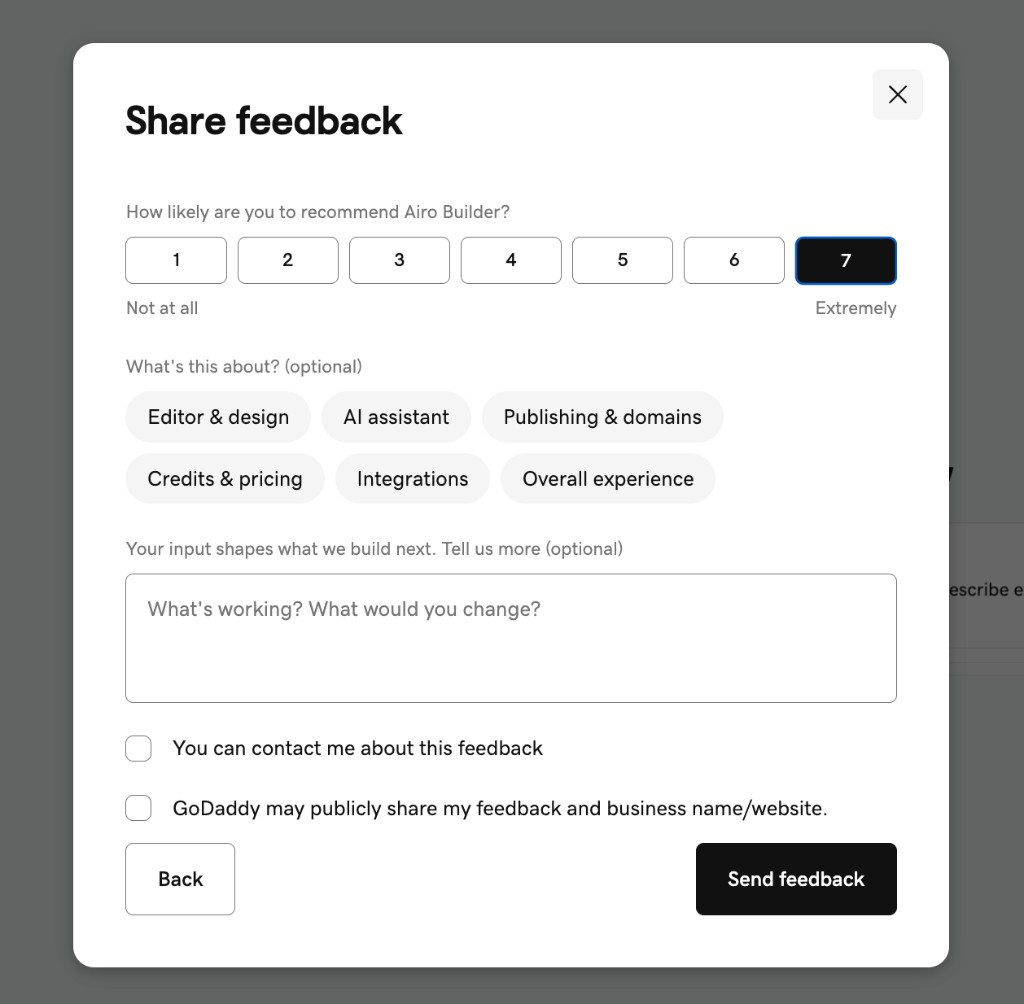
When you rate your experience in the Share feedback flow, you can now opt in to let GoDaddy publicly share your feedback along with your business name and website.
What this means for you
Before: Your feedback stayed internal. There was no easy way to raise your hand if you loved what you built and wanted others to see it.
Now: If you are happy with your project, you can choose to share your story. That helps other builders see real examples of what is possible with Airo AI Builder.
Opting in gives you a chance to be featured on GoDaddy’s blog, social channels, or website as a customer story or testimonial. GoDaddy selects stories at its discretion; not every opt-in is featured.
You stay in control. Public sharing only happens if you check the consent box. You can also opt in to be contacted about your feedback without agreeing to public sharing.
How to use it
- Open the feedback prompt inside your project (usually after a positive experience or from the feedback entry point in the product).
- Rate how likely you are to recommend Airo AI Builder.
- Optionally pick a category (Editor & design, AI assistant, Publishing & domains, and more) and add a comment.
- Check “GoDaddy may publicly share my feedback and business name/website” if you want to be considered for a feature.
- Click Send feedback.
8. Smaller Updates That Save You Time
These shipped in June too. You may already be using them without realizing:
| Update | What you will notice |
|---|---|
| Simplified Publish Flow | One clear path to go live. If you need a plan upgrade, the builder tells you before you hit a wall. |
| Press Enter to submit | Hit Enter in the prompt bar to send your message. Faster back-and-forth with the agent. |
Who Gets These Updates?
Background builds, file attach, SEO optimization, analytics, and image editing: free plan and paid plan. App transfer emails: anyone who initiates or accepts a transfer. New to the product? You get 50 free AI credits to build your first project.
Related Guides and Video Tutorials
| If you want to… | Guide | Video |
|---|---|---|
| Get found on Google and in AI search | SEO and AEO guide | SEO walkthrough |
| Track site performance | Analytics guide | Analytics walkthrough |
| Hand off an app | App transfer guide | Transfer walkthrough |
| Write stronger prompts | 10 prompts to copy | Credit and prompt tips |
| Connect a domain | Custom domain guide | Domain walkthrough |
| Add booking to your site | Booking guide | Booking tutorial |
Previous changelogs: May 2026 · April 2026 · March 2026
Subscribe to Inside Airo AI Builder on YouTube for new tutorials every week.
Try It Yourself
Describe your idea, attach a file, or submit and walk away while the build runs. Airo AI Builder builds a working site or app, helps you publish it, optimize it for search, and track what happens next.
Have a request for what we ship next? Share it in the Airo AI Builder Discord community.
Frequently Asked Questions
What is new in Airo AI Builder for June 2026?
June adds background builds, file attach on the first prompt, SEO and AEO optimization, in-app analytics, built-in image editing, app transfer email notifications, and optional public-sharing consent when you submit feedback. Smaller UX improvements include a simplified publish flow and Enter to submit in the prompt bar.
Can I close the browser while my site is building?
Yes. After you submit your first prompt and answer the agent’s initial questions, the build continues in the background even if you close the tab. The disconnect timeout is removed, so you are not tied to an open browser window. The build only pauses if the agent needs your input.
Can I be featured on GoDaddy if I love my Airo AI Builder project?
Yes, if you opt in. When you share feedback, check “GoDaddy may publicly share my feedback and business name/website.” That gives you a chance to be highlighted on GoDaddy’s blog, social channels, or website. GoDaddy selects stories at its discretion; public sharing only happens with your consent.
Can I attach a file when I start a new build?
Yes. On the Airo AI Builder home page, drag and drop a file into the prompt area or use the file picker. Supported types include markdown, text, HTML, XML, ZIP, and common image formats. The builder uses your file to populate a starter prompt and enables Generate so you can start building immediately.
Will I get email notifications when I transfer an app?
Yes. When you start or accept an app transfer, you receive automatic emails at each step: confirmation when a transfer begins, invitation or acceptance prompts for the recipient, completion notices for both parties, and alerts if a transfer code is expiring or has expired.
What is AEO and why should I care?
AEO (Answer Engine Optimization) helps AI assistants like ChatGPT and Gemini understand and recommend your business when people ask questions instead of searching Google. Clear page content, business details, and structured pages can help AI systems cite your site in those answers.
How do I optimize my site for SEO in Airo AI Builder?
Open your project and type “Optimize my site for SEO” in the prompt bar. The agent will suggest updates to titles, descriptions, and page content. Review each change before publishing.
Do I need a paid plan for SEO, analytics, or image editing?
No. Those June features are available on the free plan and paid plans. App transfer emails apply when you use the app transfer flow.
I published in May. Do I need to do anything for SEO?
Your site already benefits from May’s technical SEO foundation (server rendering, sitemap, robots.txt). June adds an optional prompt so you can actively tune titles and descriptions whenever you want.